
ChatGPT · Claude · Pro & Max
Ask your snag list anything.
Connect SnagHawk to ChatGPT or Claude. Your office can review, assign, plan and report on site work in plain words, without learning another dashboard.
1. Install the app (you need an account)
Coming soon to the App Store and Google Play

What’s overdue at Riverside Block A?
Two findings at Riverside Apartments, Block A are past their due date:
Northbridge Construction2 findings
- Damp patch at base of external wallLevel 1 › Unit 102 · Tom HargreavesOverdue 2 days
- Water stain on ceiling below bathroomGround › Unit G01 · Sarah CollinsOverdue 1 day
Give them both to Raj Patel, due Friday.
Preview · nothing saved yet2 findings will change
Owner Tom Hargreaves, Sarah Collins → Raj Patel
Due → Friday
What you can ask.
Review
- “What’s overdue at Riverside, by floor?”
- “Show me the photos for the damp patch in Unit 102.”
Organise
- “Assign every open snag on Level 2 to Raj Patel, due Friday.”
You see a preview first, then apply.
Plan
- “Set up tomorrow’s handover inspection for Block A with the handover checklist.”
- “Build a fire door checklist with an 80% pass mark.”
Report
- “Write a client summary of the Level 2 snag, with photos.”
- “Generate the official handover report.”
In ChatGPT, it has a screen.
Answers come back as cards you can act on, and the full dashboard opens right in the chat: an overview, a findings board, planning, the checklist library and reports.
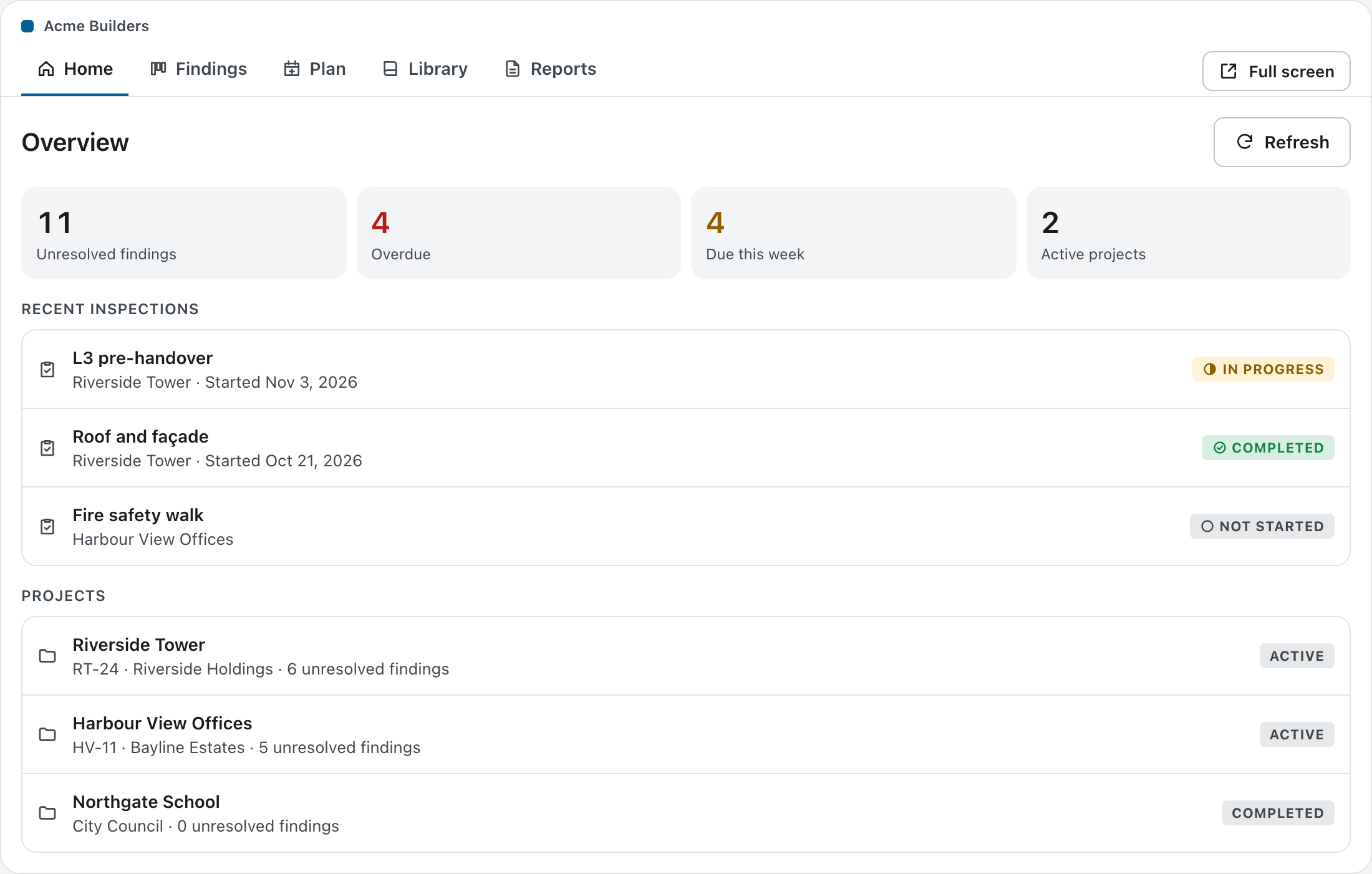
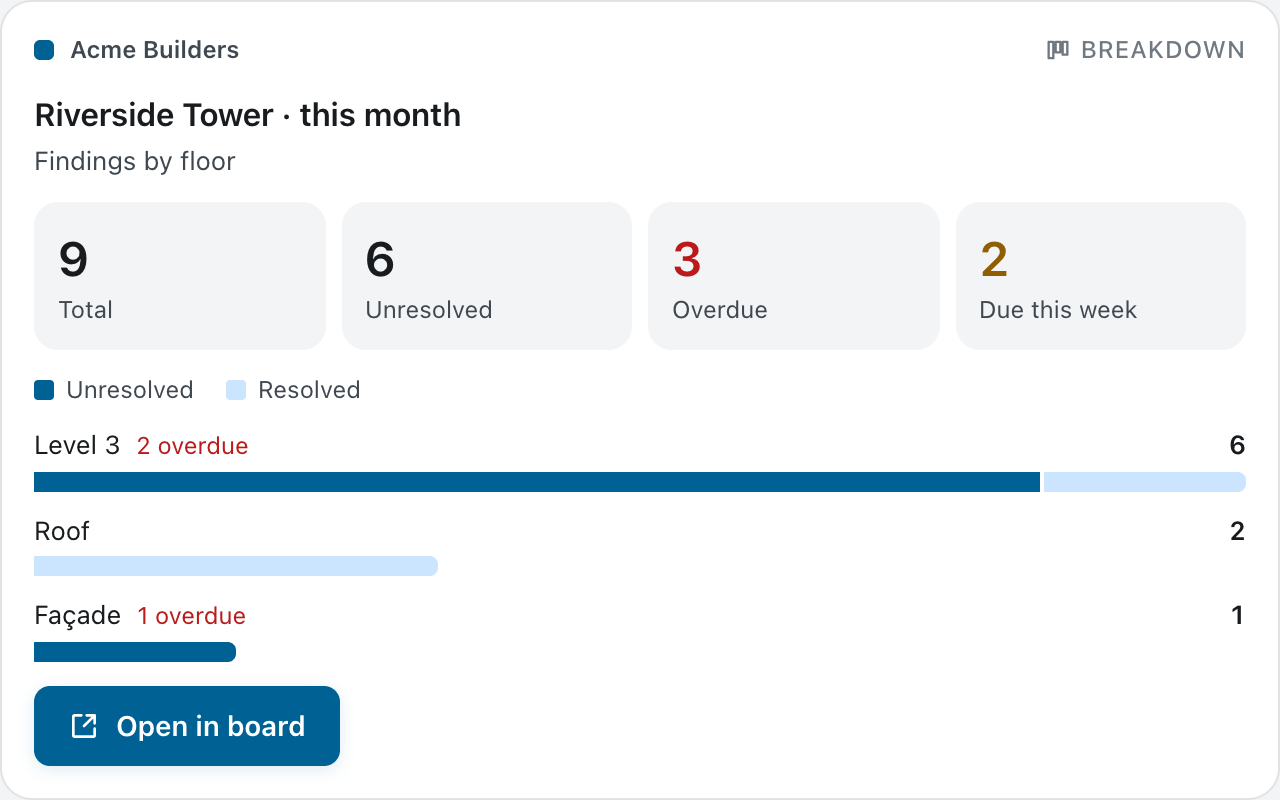
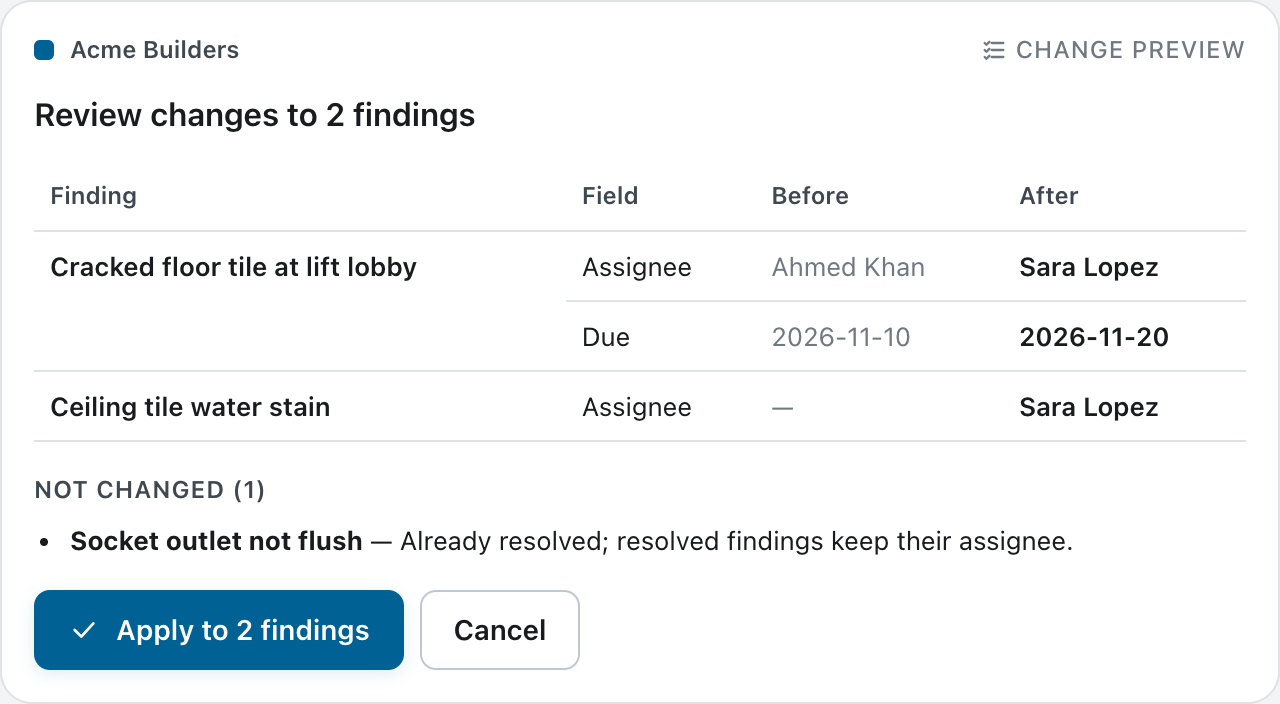
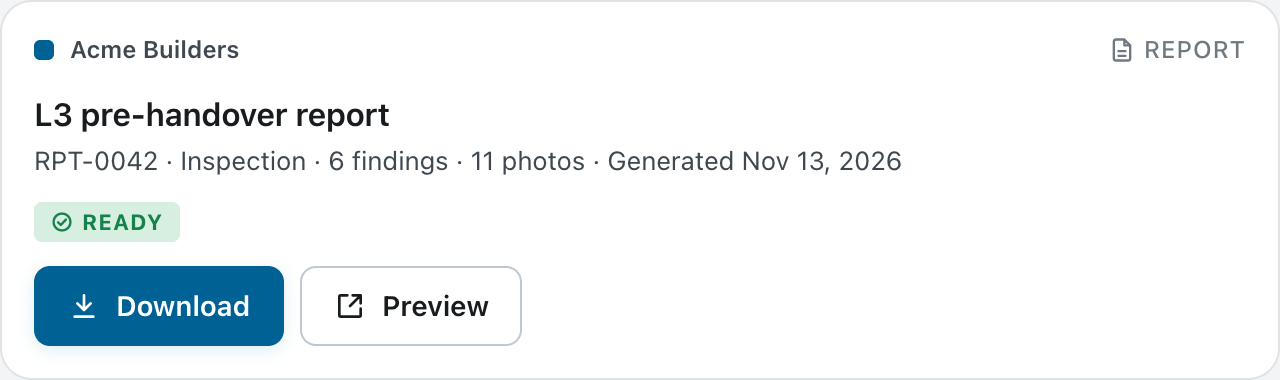
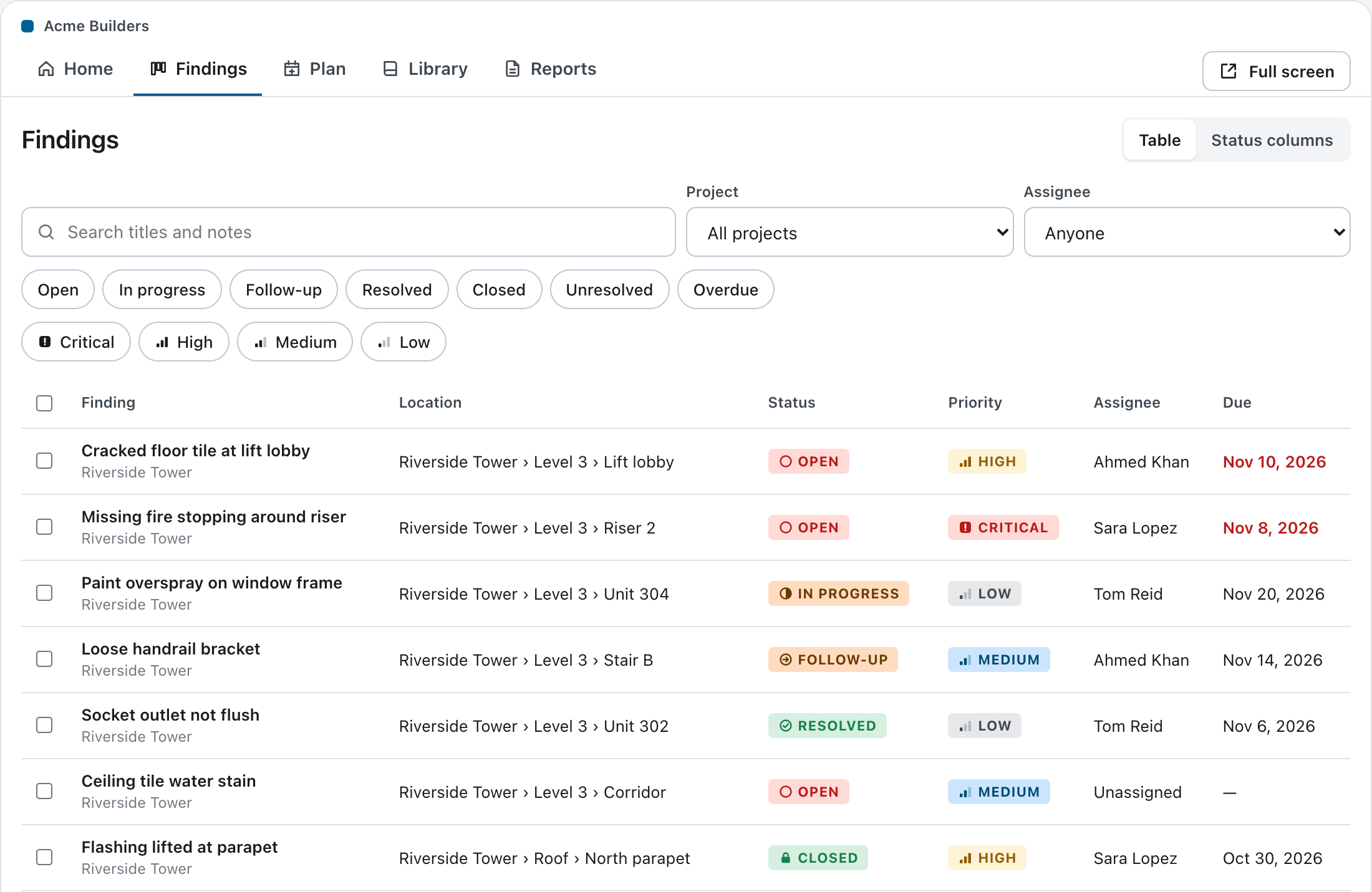
Screens from the views the connector shows in ChatGPT, filled with sample data. Your own company’s work appears in their place.
Safe by design.
- Changes are previewed before they’re applied.
- Nothing can be deleted or archived. Members, roles and billing stay in the app.
- The same roles and plan rules apply as in the app.
- Every card names the company, so you always know whose data it is.
- A finding’s history shows when a change came from the assistant.
- Disconnect any time from the app’s AI Connections screen.
Why it’s different.
No dashboard to learn.
There’s no desktop product to set up. The office reviews, assigns, plans and reports in the assistant it already uses.
Bring your own AI.
The assistant you already pay for does the thinking: summaries, report narrative, answers. There’s no second AI subscription to buy.
Official, built for assistants.
Our own server, designed for an assistant: cards, a dashboard and safe edits. Sign in with the app’s email code; no API token goes to a middleman.
How to connect.
You need a Pro or Max company in the app, and a ChatGPT or Claude plan that supports connectors.
Server URL
https://api.snaghawk.app/mcp/site-auditChatGPT
- Open Settings, then Apps & Connectors, and add a custom connector.
- Paste the server URL above.
- Sign in with your email and the code we send you.
- Choose your company and press Allow.
Claude
- Open Settings, then Connectors, and choose Add custom connector.
- Paste the server URL above.
- Sign in with your email and the code we send you.
- Choose your company and press Allow.
For agents and scripts.
Claude Code, Codex and any MCP client use the same URL, with the same browser sign-in. Scripts can use a personal access token created in the app’s AI Connections screen.
claude mcp add --transport http site-audit https://api.snaghawk.app/mcp/site-audit
codex mcp add site-audit --url https://api.snaghawk.app/mcp/site-auditIncluded in Pro and Max.
One subscription covers the whole team, and each person connects their own assistant with their own permissions.
Questions.
Does it cost extra?
Not from us: it’s included in Pro and Max. You need a ChatGPT or Claude plan that supports connectors.
Can it delete things?
No. It can’t delete or archive anything, and members, roles and billing stay in the app. Changes are previewed before they’re saved.
What can it see?
Only the company you chose when you connected, with your role’s permissions. Every card names that company.
Does it use the app’s AI allowance?
No. Your own assistant does the thinking, so it doesn’t count against anything in the app.
Who uses our data for training?
That depends on your assistant’s own settings and terms, so check them. Our privacy policy explains what an assistant can read once it’s connected.
Your next walk-round, done properly.
Free to start. Sign in with an email code and run your first inspection today.
Coming soon to the App Store and Google Play